
Welcome! In this article, we will break everything down in a simple and practical way.
Introduction
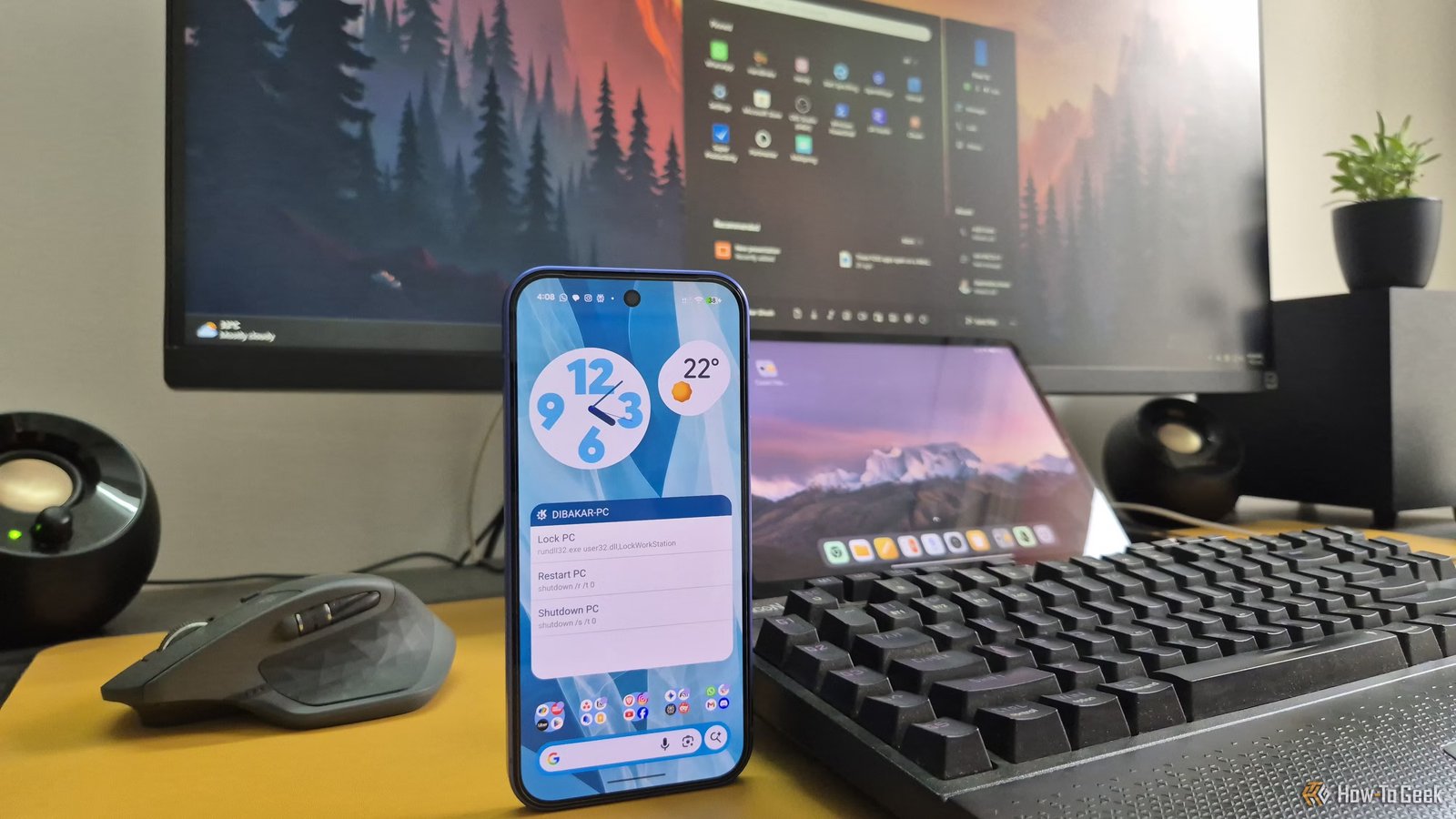
If you ask Apple users why they keep buying Apple products, the answer will almost always boil down to one word: “ecosystem.” The seamless integration between Apple devices is genuinely impressive, and for many people, it’s the main reason using anything else feels like a compromise. But this kind of cross-device experience isn’t exclusive to Apple. They just packaged these features particularly well. If you already use Windows and Android, you don’t need to switch to an all-Apple setup to get similar ecosystem functionalities—you just need to install and set up a few apps.
This is my Windows, Pixel, and Mi Pad ecosystem
Three brands—zero compromises
My setup came together based on what I genuinely think are the best devices in each category—not brand loyalty. I use a Windows PC because a Mac, at the same price point, just can’t compete on hardware. My system has a Ryzen 5 5600G, an RTX 3060 with 12GB of VRAM, and 32GB of RAM—try getting that kind of configuration from Apple without spending a small fortune. Windows also gives me more flexibility for the kind of work I do, and I run it in a multi-boot setup alongside a few Linux distros whenever I want the added privacy and customization. Next, I use a Pixel 10 because, frankly, I think it’s a better phone than the iPhone for my needs. The camera is excellent, the software is clean, but most importantly, it offers the best context-aware voice typing experience—all with local on-device processing. It genuinely makes typing on a small screen enjoyable. Finally, there’s the Mi Pad 5. It’s a budget Android tablet priced below the regular iPad, but still manages to ship with one of the best LCDs I’ve personally used, along with 256GB of storage and a flagship-class Snapdragon 860 processor. Released in 2021, it’s around five years old at the time of writing, but it still feels snappy and responsive. It has technically stopped receiving updates, but I was able to breathe new life into it using custom ROMs.
You’ll get all the features I mention here on almost any Android phone or tablet. A Pixel or Mi Pad isn’t strictly necessary. As long as it runs Android, it’ll work.
With that out of the, here are the five apps that I use to replicate all my favorite Apple ecosystem features in my setup.
KDE Connect
The app you probably never heard of is doing all the heavy lifting
KDE Connect is the backbone of my setup. It’s FOSS (Free and Open Source Software) that was originally developed to help Linux and Android devices communicate with each other. Since then, it has also added Windows support, which is what makes this setup possible for me. After installing the app, you’ll need to pair your devices and grant the necessary permissions. Once that’s done, KDE Connect automatically handles notification mirroring, clipboard syncing, and even allows you to control the media playback on one device from the other. Those features alone already cover a lot of what people describe as Apple ecosystem magic—but there are two more features that take it to the next level: remote input and command execution. Remote input lets me use my Pixel or Mi Pad 5 as a touchpad for controlling the cursor on my Windows PC. Alternatively, I can use the mouse and keyboard connected to my PC to control my phone or tablet. But the most impressive feature is command execution. KDE Connect lets me remotely run terminal commands on my Windows PC from my phone or tablet with a single tap. I can use it to launch apps, run scripts, or trigger entire workflows without touching my PC. It gives me a level of cross-device automation and control that feels far more powerful than Apple’s ecosystem. Here’s KDE Connect for Android and Windows.
Related
The Smoothest Way to Send Clipboard Text and Files Between Your Android and PC
No need to email yourself files and text yourself clipboard data.
LocalSend
The device-agnostic AirDrop
LocalSend is my go-to tool for transferring files between devices. It works similarly to AirDrop, offering fast, fully local peer-to-peer transfers without requiring internet access or account setup. It’s also completely free, open source, and compatible with Windows, Android, and even Apple devices. To be fair, KDE Connect also supports file transfers between devices. However, I’ve run into reliability issues when transferring large files or large batches of files through KDE Connect. In those situations, I usually fall back to LocalSend instead. Here’s LocalSend for Android and Windows.
Related
Who needs AirDrop on Android when this open-source alternative exists
This app lets you transfer files across various devices without compression.
Spacedesk
Turn your Android tablet into a touch-enabled extended display
Spacedesk turns my Mi Pad 5 into a second display for my Windows PC—the equivalent of Apple’s Sidecar. Once connected, the Mi Pad 5 appears in Windows Display Settings as a secondary monitor. From there, I can choose whether to mirror my main display or use it as an extended screen. By default, it works over the local network, and the connection is generally stable. However, if you notice lag or stuttering, you can also switch to a USB connection for a smoother experience. What I really like about Spacedesk is that it doesn’t just turn my tablet into a second screen—it turns it into a touch-enabled second screen. I can use my finger or a stylus to move, resize, or close windows directly from the tablet. That’s a major quality-of-life advantage over Apple’s Sidecar, which doesn’t support general touch input for macOS. Here’s the Spacedesk Windows driver and the Android client.
Related
Frustrated with Steam Link? Try Open Source Streaming Alternatives Moonlight and Sunshine
Get better local game streaming performance with these free tools.
Phone Link & Link to Windows
Turn your Android phone into a Windows webcam
Phone Link on Windows and Link to Windows on Android are Microsoft’s solution for pairing your Android phone with your Windows PC. KDE Connect already covers most of the features I personally use—and does a better job at it—so I don’t rely on Phone Link very heavily. However, there’s one thing it does that KDE Connect can’t: lets me use my Pixel’s camera as a webcam for my PC. In Apple’s ecosystem, this feature is called Continuity Camera, and it’s genuinely one of the best parts of the iPhone-and-Mac experience. With Phone Link, I can get a very similar setup on Windows. As long as my Pixel is nearby, I always have access to a high-quality camera for video calls. Here’s the Link to Windows Android app. Phone Link comes built-in to Windows.
Nextcloud
Create your own self-hosted iCloud—without the monthly subscriptions
Nextcloud is basically my version of iCloud. It’s a FOSS self-hosted cloud platform that handles cross-device file syncing, so anything I save is accessible from my PC, tablet, and phone. But it goes beyond simple file syncing. Nextcloud can also function as a cloud calendar, note-taking app, and even a lightweight office suite with document and spreadsheet editing support. In that sense, it’s actually closer to Google Drive than iCloud.
Unlike iCloud and Google Drive, Nextcloud doesn’t give you additional storage—it just makes your current storage accessible to your other devices over a local (or remote) network. That being said, since storage prices outside the Apple ecosystem aren’t that expensive, I truly don’t mind the additional cost—especially since it’s a one-time thing and not an ongoing subscription.
Storage Capacity
4TB
Brand
Seagate
A great combination of pricing and performance, the Seagate IronWolf is a great option for most NAS users. With a three-year warranty, three years of data recovery services included with purchase, and a workload of 180TB of data writing per year, this drive can handle just about anything you throw at it.
To use Nextcloud, you’ll need to self-host it somewhere. I personally run it on my DIY NAS, but you can also use Docker to host it directly on a Windows PC. The setup process isn’t especially long, but it can get a little technical.
If that sounds like too much work, you could just use Google Drive as your iCloud replacement. The important thing is having some kind of centralized cloud service in your setup, and there are plenty of options depending on how much control you want over where your files live. Here’s the Nextcloud AIO installation for Windows and the Nextcloud client app for Android.
Related
How to Self-Host a Collaborative Cloud with Nextcloud and Docker
Nextcloud is an open-source file-sharing and collaboration platform to rival services like Google Workplace and Microsoft 365.
I’m not in the Apple ecosystem—but I enjoy all the awesome ecosystem features
There you have it, my diverse yet integrated Windows-Pixel-Mi Pad setup—three devices from three manufacturers, all working together without friction. The only real catch is that none of this comes prebuilt the way it does in Apple’s ecosystem, but you can hardly call that a dealbreaker. Once you know which cross-device features you actually want, it mostly becomes a matter of finding the right apps. Whether it’s clipboard syncing, file transfers, remote input, or using your phone as a webcam, there’s almost always a tool that brings that functionality to your Windows and Android setup.
Conclusion
Thanks for reading this tutorial on HunterSam. Stay updated with smart how-to guides, troubleshooting tips, and easy tech tutorials.
Related Articles
Your hard drive uses one of three file systems—here's why it matters when you format
This Android setting is overriding your router's private DNS
This NASA-inspired luxury SUV is giving the Acura MDX a run for its money
Frequently Asked Questions
What is My Windows-Android ecosystem is better than Apple’s—thanks to these 5 free apps?
My Windows-Android ecosystem is better than Apple’s—thanks to these 5 free apps is an important topic that helps users better understand modern technology and SEO strategies.
Why is this topic important?
This topic is important because it improves productivity, SEO performance, and overall digital growth.
Can beginners understand this topic?
Yes, beginners can easily understand this topic with the help of practical examples and step-by-step guidance.
🚀 Recommended Tools
Explore premium AI tools and SEO resources to grow your website faster.
View Recommended Tools
Google AdSense Area