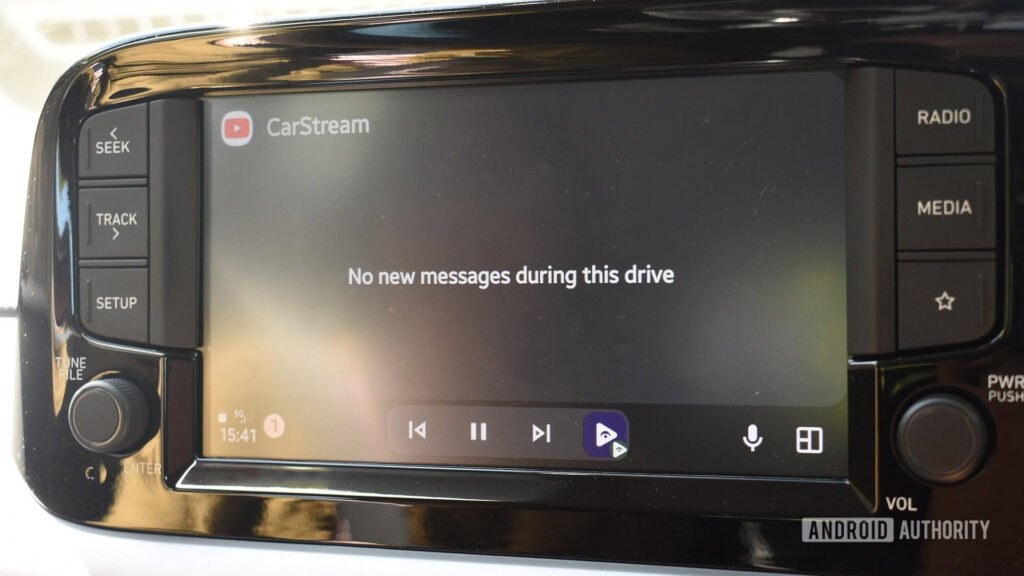

10 Essential Fixes for Android Auto Issues to Get You Back on the Road
Are you tired of dealing with frustrating Android Auto issues? You’re not alone. Millions of users have experienced problems with their Android Auto infotainment systems, from freezing and crashing to connectivity problems and more. But don’t worry, we’ve got you covered. In this article, we’ll explore the latest fixes from Google to help you resolve your Android Auto issues and get back on the road.
Android Auto Issues: The Bane of Your Existence?
Android Auto is a popular infotainment system designed to make driving safer and more enjoyable. It provides a seamless integration of your Android device with your car’s infotainment system, allowing you to access music, maps, and other key features on the go. However, like any complex system, Android Auto can experience problems that can be frustrating and time-consuming to resolve.
Common Android Auto Issues
Before we dive into the fixes, let’s take a look at some of the most common Android Auto issues:
* Freezing and crashing: Android Auto can freeze or crash, leaving you unable to access key features.
* Connectivity problems: Android Auto may struggle to connect to your car’s infotainment system or your Android device.
* Slow performance: Android Auto can be slow to respond, making it difficult to navigate and access features.
* Glitches and bugs: Android Auto may experience glitches and bugs, such as missing features or incorrect displays.
Google’s Latest Fixes for Android Auto Issues
Fortunately, Google has been working hard to address these issues and provide fixes for Android Auto problems. Here are some of the latest solutions:
* Update your Android Auto app: Make sure you’re running the latest version of the Android Auto app on your Android device.
* Clear cache and data: Clearing the cache and data of the Android Auto app can help resolve connectivity issues and improve performance.
* Check your car’s software: Ensure your car’s infotainment system is up to date with the latest software.
* Restart your car’s infotainment system: Restarting your car’s infotainment system can help resolve connectivity issues and improve performance.
* Disable Bluetooth: Disabling Bluetooth can help resolve connectivity issues and improve performance.
* Check for firmware updates: Check with your car’s manufacturer for firmware updates for your infotainment system.
* Reset your Android Auto settings: Resetting your Android Auto settings can help resolve connectivity issues and improve performance.
Additional Fixes and Tips
In addition to Google’s latest fixes, here are some additional tips and fixes to help you resolve Android Auto issues:
* Use a car mount: Using a car mount can help improve Android Auto’s performance and reduce distractions while driving.
* Avoid overloading your Android device: Avoid overloading your Android device with too many apps and features, as this can slow down Android Auto’s performance.
* Use a high-quality USB cable: Using a high-quality USB cable can help improve connectivity and reduce issues.
* Check for Android device updates: Ensure your Android device is running the latest software to improve compatibility with Android Auto.
Conclusion
Dealing with Android Auto issues can be frustrating, but with Google’s latest fixes and these additional tips and fixes, you can resolve many common problems and get back on the road. Remember to update your Android Auto app, clear cache and data, check your car’s software, and restart your car’s infotainment system to improve performance and reduce issues. By following these steps, you can enjoy a safer and more enjoyable driving experience with Android Auto.
Frequently Asked Questions (FAQs)
* Q: What are some common Android Auto issues?
A: Some common Android Auto issues include freezing and crashing, connectivity problems, slow performance, and glitches and bugs.
* Q: How do I update my Android Auto app?
A: To update your