
Welcome! In this article, we will break everything down in a simple and practical way.
Introduction
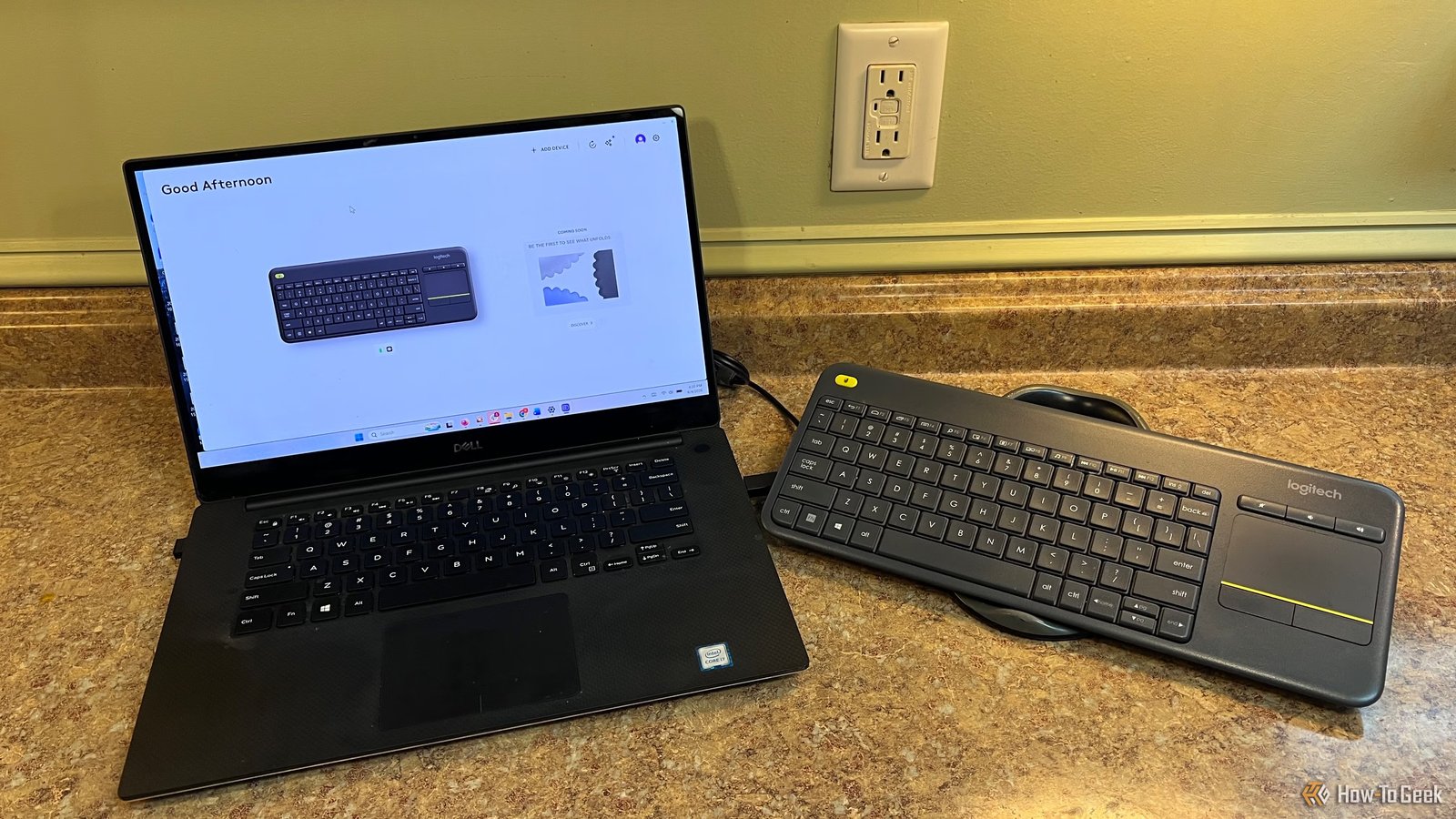
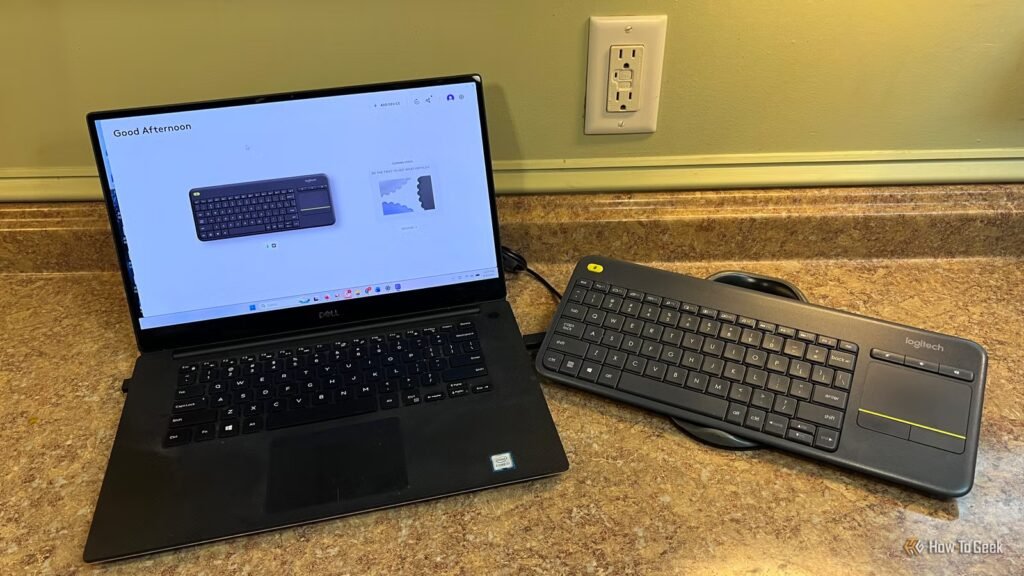
I have many PCs in my home. Most run Windows, some run macOS, and a few run Linux, but the common thread across them all is that I typically end up on a Logitech wireless keyboard. The exception is when I’m sitting down for a longer writing session, where I prefer to use a mechanical keyboard. That’s not because it’s the fanciest keyboard I own. It’s because it’s easy, familiar, and already sitting where I need it. For a long time, I treated it like any other keyboard: press the keys, maybe use a few media controls, and move on. That changed when I came across Logi Options+ last year. I expected another basic companion app for changing a few button assignments and checking battery levels. Instead, I found something that felt much more useful than that. Logi Options+ turns supported Logitech keyboards and mice into little workflow tools, and the feature that surprised me most was Smart Actions. Once I realized I could use a key to trigger a whole sequence of repeated steps, the keyboard stopped feeling like a passive accessory and started feeling like part of my process. That’s where Logi Options+ becomes more interesting than the keyboard itself.
The keyboard is only the trigger
The thing that makes this useful isn’t really hiding inside the keyboard itself. A Logitech keyboard is still just a keyboard until you pair it with the right software. That’s where Logi Options+ comes in. It’s Logitech’s customization app for supported keyboards, mice, touchpads, webcams, and other devices on Windows and macOS, and it gives those devices more control over what happens on your computer. That matters because Smart Actions are not just another media key or shortcut button. They live inside Logi Options+, and your supported Logitech keyboard or mouse becomes the trigger. Instead of pressing a key to open one app or perform one simple command, you can use Smart Actions to chain together several small steps. The keyboard starts the workflow, but the software is what makes the workflow possible. That also means support varies by device, so it’s worth checking whether your keyboard or mouse works with Logi Options+ before you go looking for Smart Actions.
Smart Actions turn one key into a whole workflow
The best shortcut is the one that saves you from setting everything up manually
The useful part of Smart Actions is that they’re not limited to one command. A normal shortcut might open one app or trigger one keyboard command. A Smart Action can stack several small steps together, so one button can start the same routine you would normally click through by hand. For me, the most obvious example is starting my workday. When I turn on my work machine, I usually need the same handful of apps before I can actually get moving: LibreOffice Writer, sometimes Microsoft Word, Chrome, NoteTab Pro, and Slack. None of that’s hard to open manually, but it’s the kind of setup routine I repeat so often that it becomes invisible. Turning that into one shortcut doesn’t feel flashy. It just removes a little friction before the real work starts. Some of the most useful Smart Actions are the simple ones:
Start my workday: Open your writing app, browser, notes app, messaging app, and any folders or tabs you use every morning.
Writing mode: Launch LibreOffice Writer or Word, open your notes, and bring up the browser tabs you use for research.
Meeting setup: Open Zoom or Teams, launch your notes app, and bring up your calendar.
Screenshot workflow: Open your screenshot tool, launch your screenshots folder, and prepare whatever app you use for editing or captions.
End-of-day cleanup: Open your task list, bring up tomorrow’s notes, or launch the folders you check before shutting things down.
8/10
If you’re a big fan of the Apple Magic Keyboard, the Logitech MX Keys S is the natural progression. It has low-profile keys, with small indentations to prevent your fingers from wandering. The rechargeable battery is also phenomenal, lasting up to 5 months (without backlighting). It even recharges via USB-C!
Use it for the boring stuff you repeat every day
Small automations are usually the ones that stick
Credit: Hannah Stryker / How-To Geek
The mistake I often make with automation is thinking it has to be more. That’s how I end up trying to build some giant workflow that sounds useful in theory but never really becomes part of my day. Smart Actions make more sense when you aim lower. Look for the small things you do over and over again without thinking: opening the same apps, pulling up the same folder, pasting the same text, launching the same browser tabs, or getting your workspace ready before a meeting.
That’s where this kind of keyboard automation starts to feel useful. It’s not about replacing work or turning your desk into a command center. It’s about removing the annoying setup steps that happen before the work can start. If one key saves you from clicking through the same routine every morning, that’s enough. The best Smart Actions are the ones you barely notice after a while because they quietly get rid of one little speed bump in your day.
Your keyboard might already be your easiest productivity upgrade
The best part about Smart Actions is that you do not have to rethink the way you work to get something useful out of them. Start with one routine you already repeat every day, whether that is opening your work apps, setting up a writing session, preparing for a meeting, or pulling up the same folders and browser tabs. If one key can get that out of the way, your keyboard is doing more than typing. It is removing one more small bit of friction from your day, and that is usually where the most practical productivity upgrades come from.
Conclusion
Thanks for reading this tutorial on HunterSam. Stay updated with smart how-to guides, troubleshooting tips, and easy tech tutorials.
Related Articles
Frequently Asked Questions
What is Your Logitech keyboard has a hidden automation tool, and it can save you time every day?
Your Logitech keyboard has a hidden automation tool, and it can save you time every day is an important topic that helps users better understand modern technology and SEO strategies.
Why is this topic important?
This topic is important because it improves productivity, SEO performance, and overall digital growth.
Can beginners understand this topic?
Yes, beginners can easily understand this topic with the help of practical examples and step-by-step guidance.
Additional Insights
Understanding this topic in depth can significantly improve your blogging strategy, SEO performance, and overall website authority.
Modern AI tools and automation systems are transforming the way content is created, optimized, and published online.
Consistency, SEO optimization, and helpful content are the key factors behind successful digital growth.
Expert Tips
- Focus on high-quality helpful content.
- Use SEO-friendly headings and keywords.
- Maintain proper internal linking.
- Optimize featured images and metadata.
- Update articles regularly for freshness.
🚀 Recommended Tools
Explore premium AI tools and SEO resources to grow your website faster.
View Recommended Tools
Google AdSense Area